Different Types of Firewall - You Should Be Known

Introduction of Firewall

A firewall is a network security system that monitors and controls incoming and outgoing network traffic based on predetermined security rules. Its primary objective is to protect a network from unauthorized access while allowing legitimate traffic to flow freely.

A firewall can be either hardware or software-based and can be configured to filter traffic based on various criteria such as IP addresses, port numbers, protocols, and keywords. It is typically placed at the network perimeter or between different network segments to act as a barrier between trusted and untrusted networks.

Firewalls provide essential security functions such as access control, traffic filtering, and intrusion detection and prevention. They are widely used in organizations of all sizes to safeguard their networks from malicious attacks, data theft, and unauthorized access.

What are the Different Types of Firewall?

Firewalls are an essential part of network security and come in different types. The most common types of firewalls include:

Packet Filtering Firewall: Packet filtering firewalls inspect the network traffic and filter packets based on pre-defined rules. It is the most basic type of firewall that works at the network layer of the OSI model.

Stateful Firewall: Stateful firewalls maintain a record of the connections made between trusted and untrusted networks. It inspects packets based on the state of the connection, such as whether it is a new or established connection.

Proxy Firewall: Proxy firewalls act as an intermediary between the client and the server. It filters and inspects packets before forwarding them to the intended recipient, thereby adding an extra layer of security.

Next-Generation Firewall: Next-Generation Firewalls (NGFW) are advanced firewalls that provide additional features like intrusion prevention, application-level filtering, and deep packet inspection.

Network Address Translation (NAT) Firewall: NAT firewalls hide the internal network address from external networks, thereby providing an additional layer of security.

Cloud Firewall: Cloud firewalls are virtual firewalls that operate in the cloud environment, providing security for cloud-based applications and services.

Each type of firewall has its strengths and weaknesses, and the choice of firewall depends on the specific needs of the organization.

Firewall Pros and Cons

Firewalls are an essential component of network security, and they serve as a critical line of defense against potential cyber threats. However, like any security solution, firewalls have their advantages and disadvantages. Here are some of the most significant advantages anddisadvantages of firewalls:

Advantages of Firewall:

Network Protection: Firewalls protect the network by filtering incoming and outgoing traffic based on predefined rules. This protects against unauthorized access to the network, helps prevent malware infections, and reduces the risk of data breaches.

Customizable: Firewalls can be configured to meet the specific needs of an organization. They can be set up to allow or block traffic based on specific criteria, such as IP addresses, protocols, or applications.

Scalable: Firewalls are scalable, and they can be used in small or large networks to protect against different types of threats. They can also be deployed as a standalone solution or as part of a more comprehensive security strategy.

Monitoring and Reporting: Firewalls can provide monitoring and reporting capabilities, allowing network administrators to identify potential security issues and address them proactively.

Regulatory Compliance: Firewalls are often required by industry and government regulations, making them a critical component of compliance efforts.

Disadvantages of Firewall:

False Positives: Firewalls can sometimes flag legitimate traffic as malicious, leading to false positives that can disrupt normal business operations.

Limited Protection: While firewalls are an essential component of network security, they can't protect against all types of threats. For example, they may not be effective against social engineering attacks or zero-day exploits.

Configuration Complexity: Firewalls require a certain level of technical expertise to configure and manage effectively. This can be challenging for small businesses or organizations without dedicated IT resources.

Cost: Firewalls can be expensive, particularly for larger organizations or those with complex network configurations.

Performance Impact: Firewalls can sometimes impact network performance, particularly when they are configured to inspect all traffic. This can lead to latency issues, slow response times, or network congestion.


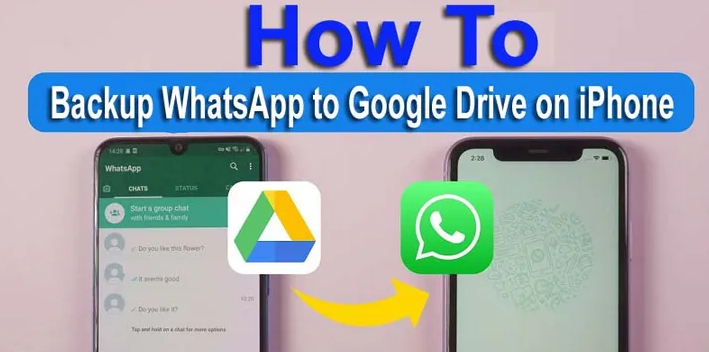
How to Backup WhatsApp to Google Drive on iPhone? Easy Guide!!

 In this article, we will cover about how to backup WhatsApp to Google Drive on iPhone or iPad by using 3 incredible easier tricks as “ Manually & Automatically “. At the end, you will say that it is simplest ways and I can do it myself!!

Google Drive is a excellent solution to your backup Whatsapp data. It helps you to provide huge garage space without spending a dime-of-fee, lets in to take backup amplify documents consisting of pictures and movies, and then you could easily access backup alongside each Google account.

There are not any ticks to get backup WhatsApp data to your iPhone and iPad devices to Google Drive immediately, because you can take most effective lower back as much as Google Drive as a used for saving pix, contacts, and calendar content for your iOS gadgets , and know about how to transfer WhatsApp from Android to iPhone as well. The pics may be taken returned up in Google Photos, Contacts in Google Contacts and Calendar in Google Calendar.

If you are the use of iPhone then WhatsApp for iPhone only allow you to one manner to take backup WhatsApp all facts to iCloud and as opposed to this, you haven’t any choice to backup WhatsApp whole facts.

How to Backup WhatsApp to Google Drive on iPhone

In this phase, we will guide you approximately the way to backup WhatsApp on iPhone to Google Drive as manually and mechanically. In manually, you can take backup WhatsApp Chats and Media (Photos & Videos) one at a time. In routinely way, you can backup WhatsApp whole facts right now.

•                   Backup WhatsApp Chat on iPhone to Google Drive

•                   Backup WhatsApp Media to Google Drive on iPhone

•                   Entire Backup WhatsApp Chats & Media on iPhone to Google Drive

Let’s Start!!

How to Backup WhatsApp Chat on iPhone to Google Drive

With next few best steps, you can get backup WhatsApp chat to Google Drive on iPhone or iPad; here’s how:

•                   Firstly you need to want launch WhatsApp on your iPhone or iPad

•                   Press on <Settings> app

•                   Tap on <Chats> option

•                   This will open many options, pick <Export Chat>

•                   Next you need to want choose the contact whose chat you need to take backup.

•                   Further you'll be requested to pick “Attach Media” or “Without Media“, if you wish to consist of media documents, then you have to go with <Attach Media> and proceed.

 This will deliver up numerous proportion icons

If you pick out <Google Drive> choice

•                   Then you can pick the area wherein you want to add zip document and click on on <Upload> tab.

•                   Check your uploaded zip file into Google Drive this is presented or now not.

Note: Google Drive doesn’t can help you import your exported WhatsApp backup; however you may view this record with the aid of getting to unzip it.

Limitation: Import 20,000 trendy chats alongside media and 40,000 chats with none including with media files.

If you pick <Gmail> icon, and then enter your desired e-mail deal with within the recipient container and press <Send> button.

•                   Once performed it, open e-mail where you despatched it with introducing credential and faucet <Google Drive> icon to preserve save the all chats.

How to Backup WhatsApp Media to Google Drive on iPhone

If you don’t choose to take backup Chat in conjunction with media, then you could get the again up of WhatsApp photos and films for your Google Drive and listen to voicemail on iPhone with ease. Here we will talk approximately the way to backup WhatsApp Images and Videos on iPhone to Google Drive:

Firstly you need to need sync the WhatsApp snap shots iPhoto to Google Drive; to do that:

•                   Launch WhatsApp on your iPhone or iPad devices.

•                   Then press on <Settings> choice.

•                   Next you have to discover chat alternative and tap on it.

•                   Now permit the toggle <Save to Camera Roll>

Once finished this procedure, WhatsApp keep saving all pics and movies immediately to camera roll, and then you may take backup on your Google Drive as your selection. Here’s how:

•                   Open Google Drive on your tool.

•                   Press the <Settings> alternative

•                   Next you have to faucet on <Backup> button

•                   This will open new web page <Backup to Google Drive>, pick out <Photos & videos> tab, and then turn on of toggle switch to take vehicle backup.

•                   Move returned to Backup page, and faucet on <START BACKUP> to start backup your all pictures an motion pictures to Google Photos.

Note: Must be solid net access.

Entire Backup WhatsApp Chats & Media on iPhone to Google Drive

Of path, you haven’t any approaches to take fully backup WhatsApp to Google Drive for your iPhone or iPad without delay. But on this part, we are able to discuss how you can take fully WhatsApp backup on iPhone. For this, you need to need an Android as a middleware and 0.33-birthday celebration tool for backing up.

With following 3 simple steps, you may take backup WhatsApp to your iPhone:

1) Take WhatsApp Backup on iPhone

•                   Firstly you have to want any 0.33-celebration device, we use MobileTrans, you may download it from its respectable website and installation for your iOS device.

•                   Once executed it, open this tool and join iPhone along with your laptop.

•                   Next you'll come on home page of MobileTrans and pick <WhatsApp Transfer> option.

•                   Select <WhatsApp> from left aspect bar, after which choose <Backup WhatsApp messages> choice.

•                   MobileTrans will take once in a while for detecting your WhatsApp for your system and click on <Start> button to begin lower back up in your iPhone.

2) Transfer WhatsApp backup from iPhone to Android

•                   Launch MobileTrans and connect Android device with laptop.

•                   Choose <Backup&Restore> tab and pick out <WhatsApp> choice

•                   Further you need to need to pick out your iPhone backups to switch.

•                   Once completed this process, your all statistics has been restored into Android smartphone.

3) Take Backup WhatsApp from Android to Google power

•                   Launch WhatsApp on Android tool

•                   Go to <Settings> alternative

•                   Next you need to faucet on <Chats> choice from given listing

•                   Further select the <Chat backup> alternative

•                   Now eventually, beneath the “Google Drive label“, shift the choice into <Back up to Google Drive> to help the backup of WhatsApp facts into your Google Drive.

At The End

At the above, we guide you about all possible techniques to take backup WhatsApp to Google Drive on iPhone. You can choose one in all them as your convinces.

If virtually this text is most beneficial for then you definitely please proportion it to your social media platforms like as Facebook, Twitter, Instagram, and more!!

How to Create Apple ID on iPhone & iPad? Set up Apple ID!!

Are you unsure about to make a new Apple Id? Don’t get panic because here we will cover all possible things about how to create a new Apple ID on iPhone, iPad and Mac with ease. At the end, you will say that it is incredible easier and i can do it myself with in few minutes.

What is Apple ID?  Apple Company gives a completely unique digital identification to all Apple users. With using Apple ID, consumer can buy any product and statistics on Apple device you own. You have to want an Email ID and password to log on your Apple ID to your iOS tool, and then it lets in gaining access to your payment and makes contact with information, and knows about how to change Apple ID on iPhone with ease.

If you wish to buy any music from iTune Store, lease TV shows or movies, buy any app, recreation, iOS tool, and get save on Apple Online Store, then you need to want a legitimate Apple ID.

How to Create a New Apple ID

In this phase, we are able to explore all matters about the way to create a brand new Apple ID for your iPhone, iPad or Mac without including any payment methods; below shown all:

1.                 How to Create a New Apple ID on iPhone or iPad

•                   Create an Apple ID through ‘Settings App’

•                   Setup a New Apple ID thru ‘App Store’

2.                 How to Make a New Apple ID on Mac

•                   Get Apple ID on Mac using ‘System Preferences’

•                   Get Apple ID on Mac using ‘Mac App Store’

•                   Get Apple ID on Mac the usage of ‘Online Web’

3.                 FAQ (Frequently Asked Questions)

Let’s start!!

How to Create a New Apple ID on iPhone or iPad

Here we are able to recommend you two most effective approaches to create a brand new Apple ID for your iPhone or iPad gadgets without including any price method; underneath mentioned both:

Create an Apple ID thru ‘Settings App’

•                   Firstly you have to launch <Settings> app on your iOS tool.

•                   Press on <Sign in to your iPhone> alternative finding on the top of your tool’s display

•                   On subsequent display screen, click on on <Don’t have an Apple ID or forgot it> blue link.

•                   This will open pop-up, press on <Create Apple ID>

•                   On resulting screen, insert your First Name, Last Name, and Birthday, and click on <Next> locating at pinnacle proper nook of the display screen.

•                   Further you have to need positioned your existing electronic mail id, or press on <Don’t have an email address> to get free iCloud e-mail identification, like as xyz@iCloud.Com

•                   Enable toggle subsequent to <Apple News & Announcements>, if you want to obtain brand new Apple News & Announcements, and then tap on <Next>.

•                   Now you can create a strong password and affirm it by using urgent it once more, then press on <Next>

•                   Press on <Use a Different Number or Continue> to pick out whether or not you desire to obtain a textual content message or phone call for identity verification, after which press on <Next>

•                   On subsequent display screen, insert your ‘verification code’ that become obtained on your pick out mode above, and click on <Next>

•                   Further tap on <Agree> to accept all terms and conditions.

•                   Put your iPhone Password, if it has one.

•                   Now you could pick out to <Merge> to get synchronize all data to your iOS tool to iCloud at equal time, otherwise keep away from it by way of tapping on <Not Merge> alternative.

Now your Apple ID has been created to your iOS tool, and you may additionally use it to log in for your other devices additionally.

Setup a New Apple ID thru ‘App Store’

It is likewise best manner to setup an Apple ID to your iOS device, if you have to strive open App Store, then Apple will prompt you two choice like as check in at the side of existed Apple Id or make a new Apple ID that finding at the bottom of identical display screen resetApple ID password on iPhone. This approach allows you to make a Apple ID without including credit card; underneath shown all steps:

•                   Firstly you have to open App Store on your iPhone or iPad

•                   Press on <Create New Apple ID> option that displaying at the lowest of screen.

•                   Further, insert your existed e-mail ID and choose strong password to new Apple ID.

•                   Now you may pick the billing cope with of your residing united states. Make make sure, need to be chosen billing cope with successfully because all areas are locked via Apple ID.

•                   On the ensuing display, examine carefully all T&C and privacy coverage, press on <Agree> after which tap on <Next>

•                   Enter your desired information like as first call, remaining call, birthday, and United States.

•                   Next you have to placed your credit score card and billing detail, pick out <None>, in case you want to bypass it.

•                   Insert and confirm your cellphone variety, and then move ahead.

•                   Then Apple will fire you a affirmation email into your e mail inbox, as soon as obtained it, and then open the verification link.

Now your Apple ID is completely setup in your iPhone and iPad.

How to Make a New Apple ID on Mac

To create an Apple ID to your Mac is definitely loose and quite smooth, it helps you to three options to make a new Apple ID like as System Preferences, Mac App Store, Web; beneath explained every one:

Get Apple ID on Mac the usage of ‘System Preferences’

This is quite simple way to make an Apple ID on Mac machine; to try this:

•                   Launch <System Preferences> to your Mac

•                   This will bring up the empty profile interface, and press on <Sign In>

•                   Then click on <Create Apple ID…> choice that finding backside of equal window.

•                   Now you need to input all required info to make an account, like as <First Name and Last Name, Country, Email ID Date of Birth, Password, and Series of Security Questions>.

•                   At the quit, Apple will push a verification e mail to validate you. Your Apple ID can be the email that you signed up with, that's well worth keeping in mind.

How to Get Apple ID on Mac using ‘Mac App Store’

It is every other manner to make Apple ID to your Mac thru ‘Mac App Store’, in case you opt for it; right here’s how:

•                   Launch to your Mac

•                   On next web page, hit on tab that locating backside of same window.

•                   Select option.

•                   Now you have to positioned your electronic mail cope with, password, and use, and then pick out to comply with Apple’s Terms and Conditions.

 Important!! While attending to sign up thru ‘Mac App Store’, Apple may be demanded to enter a credit card and billing statistics, and then pick out <None> to bypass it.

How to Get Apple ID on Mac the usage of ‘Online Web’

This is also fine option to make a new Apple ID for your Mac machine; right here’s how:

•                   Go in your browser and open https://appleid.Apple.Com/ this internet site to your machine.

•                   On then home page, select the <Create Your Apple ID> at the lowest of window.

•                   Further you need to insert your vital facts. The e mail deal with and password you use might be your Apple ID: Must be saved into thoughts!

•                   Hit on <Continue> option, and then you'll get an email in conjunction with verification code.

•                   Put ‘verification code’ that might be received into your email id.

•                   At the quit, hit on <Continue> option.

•                   Now your Apple ID is created, so from right here you could additionally add your fee techniques like as credit card to purchase any app, iTune and greater.

FAQ (Frequently Asked Questions)

Can I Create Apple ID with the aid of Myself?

Yes, Apple lets in all permissions to all own customers to create a new Apple ID. We already cited all feasible methods to make an Apple Id on your iPhone, iPad and Mac.

Can I Create a New Apple ID with the Same Phone Number?

No, you may’t create every other new Apple ID in conjunction with identical phone quantity. Even in case you are going to attempt it then first Apple Id seems the number is already existed.

How Can I See Who is using my Apple ID?

You must cross Devices section of your Apple ID account phase, and then you are able to view all devices which are currently logged in alongside your same Apple ID like as clever TV, iOS and Android gadgets, consoles and greater.

The Bottom Lines

Now I hope that you have learnt all strategies approximately a way to create a new Apple Id for your iPhone, iPad and Mac machine with and without including your payment techniques.

If this newsletter is beneficial for you then please proportion it alongside their buddies, circle of relative’s members, and loved ones over social media like as FB, Twitter, Instagram, and Linked In as properly.

Have a Nice Day!!

backlink index 12/9/2022

share link c/s archture
https://www.edocr.com/v/ydpnqeby/DigitalThinkerHelp/What-is-Green-Computing-and-its-Amazing-Examples
https://www.slideshare.net/digitalthinkerhelp/what-is-green-computing-and-its-amazing-examples
https://www.powershow.com/view0/8d74e8-ZGUxO/What_is_Green_Computing_and_its_Amazing_Examples_powerpoint_ppt_presentation
https://www.slideshare.net/digitalthinkerhelp/amazing-some-applications-of-soft-computing
http://www.authorstream.com/Presentation/DigitalThinkerHelp-3849964-amazing-applications-soft-computing/
https://www.slideserve.com/DigitalThinkerHelp/amazing-some-applications-of-soft-computing-powerpoint-ppt-presentation
https://www.scribd.com/presentation/412530787/Amazing-Some-Applications-of-Soft-Computing?secret_password=MS7tFb5CYjoaSSsQt22B
https://visual.ly/community/Presentation/technology/amazing-some-applications-soft-computing
https://www.edocr.com/v/z8kvm2y9/DigitalThinkerHelp/Amazing-Some-Applications-of-Soft-Computing
https://www.edocr.com/v/867ypm7z/DigitalThinkerHelp/How-Many-Types-of-Computer-Digital-Thinker-Help
https://www.slideshare.net/digitalthinkerhelp/types-of-computer-digital-thinker-help
http://www.authorstream.com/Presentation/DigitalThinkerHelp-3982959-different-types-computers-digital-thinkerhelp/
https://www.slideserve.com/DigitalThinkerHelp/killer-4-types-of-computers-digital-thinker-help-powerpoint-ppt-presentation
https://visual.ly/community/Presentation/computers/classification-computer-type-digital-thinker-help
Multitasking operating system, types of processor